How to Share a Markdown File
By Hossein · · 9 min read
You can share a Markdown file using a wide variety of methods and tools, from direct sharing to online services. The most advanced method is to use an online Markdown editor to convert your raw Markdown file into a shareable web page in seconds.
The good news is that online Markdown editors can create passwords for your document so that you can safely share it with your team.
Here, we’ll introduce the best methods for sharing Markdown files and how you can share your files using them.
What Is a Markdown File
Markdown is a lightweight text-formatting language that is suitable for creating structured documents using plain text.
Markdown formatting allows you to use simple text characters to add style to your text without using heavy word processors like Microsoft Office or Google Docs.
In fact, in a Markdown file, you can define headings, emphasis, links, code blocks, and other elements using simple elements.
The following table summarizes important symbols used in Markdown files:
| Markdown Symbol | Purpose | Example |
|---|---|---|
# |
Heading | # Main Heading |
## |
Subheading | ## Section |
** ** |
Bold text | **Important** |
* * |
Italic text | *Emphasis* |
- |
Unordered list | - Item |
1. |
Ordered list | 1. First item |
[ ] |
Task list | [ ] To-do item |
> |
Blockquote | > Important note |
` ` |
Inline code | `code` |
``` |
Code block | ```code``` |
[ ]( ) |
Link | [Visit site](https://example.com) |
 |
Image |  |
--- |
Horizontal line | --- |
The extension of a Markdown file is .md, but some Markdown editors might use other extensions.
Benefits of Using and Sharing Markdown Files
Here are the advantages of Markdown files:
-
Simple to create and edit: You can easily create and edit Markdown files with a basic text editor or a Markdown editor.
-
Easy to read: Even without rendering, you can understand Markdown content.
-
Lightweight: Markdown files contain only plain text and formatting symbols. As a result, they’re much smaller and easier to store or transfer compared to other document formats.
-
Compatible with many tools: Markdown is supported by code editors, documentation platforms, note-taking apps, Git repositories, and many publishing systems.
-
Easy to convert: You can convert Markdown into HTML, PDF, DOCX, and other formats using various tools.
-
Developer-friendly: Markdown is particularly useful for README files, technical documentation, project notes, and software documentation.
-
Easy to control versions: As Markdown is plain text, its changes can be easily tracked with tools such as Git.
-
Easy to share online: You can share a Markdown file directly or use a Markdown-sharing service.
What Are Markdown Files Used For?
Overall, when you need to easily create, edit, store, and reuse information, you can use Markdown.
Here are some examples:
- README files
- Software documentation
- Installation instructions
- Tutorials
- Meeting notes
- Study notes
- Project specifications
- Technical guides
- Blog drafts
- Knowledge-base content
- Configuration documentation
- Open-source project information
The Best Methods & Tools for Sharing a Markdown File
There are several ways to share Markdown files. You need to choose them based on your requirements.
Here is how you can share your Markdown file:
1. Send the Original .md File
The simplest way to share Markdown is to send the original .md file.
You can attach it to an email or send it through a messaging platform. You can also upload it to a file-sharing service and share the link.
This approach is useful when the recipient wants to edit the Markdown or save a local copy. In this method, the recipient can’t see the structured format. So, if you want to add it to a project or reuse the content elsewhere, sharing the raw file works well.
The biggest advantage of this method is simplicity. You are sending the source without converting or modifying it.
You can’t use this method when working with non-expert users because they might face difficulty understanding the Markdown syntax.
2. Use an Online Markdown Editor
You can use online Markdown editors to edit, convert, and share your Markdown files. Here is a quick comparison between the best Markdown sharing/editing tools:
| Feature | ShareMD | StackEdit | Dillinger | HackMD | sharemarkdown |
|---|---|---|---|---|---|
| Online Markdown editing | ✅ | ✅ | ✅ | ✅ | ✅ |
| Live preview | ✅ | ✅ | ✅ | ✅ | ✅ |
| Create a shareable URL | ✅ | ✅ | — | ✅ | ✅ |
| Password protection | ✅ | ❌ | ❌ | — | ✅ |
| Expiration time | ✅ | ❌ | ❌ | — | ✅ |
| PDF export | — | ✅ | ✅ | ✅ | ❌ |
| HTML export | — | ✅ | ✅ | ✅ | ❌ |
| Cloud storage/sync | — | ✅ | ✅ | ✅ | ❌ |
| Real-time collaboration | — | ✅ | — | ✅ | ❌ |
| Markdown-focused sharing | ✅ | Partial | Partial | Partial | ✅ |
| Quick sharing | ✅ | ◐ | ◐ | ◐ | ✅ |
Many editors allow you to work with Markdown files and see a rendered preview. This is particularly useful when creating or reviewing documentation.
For example, as a developer, you can write a document and also check how headings, lists, links, and code examples will appear after rendering.
If you regularly work with Markdown, this method is your best option because it gives you control over the source and lets you inspect the final presentation.
Also, many online Markdown editors will give a web page as a result, which can be easily shared and viewed by anyone.
3. Share Through GitHub or GitLab
GitHub and GitLab are popular choices for developers. They use these platforms for sharing their projects, including Markdown files.
They usually share Markdown using these platforms when the document belongs to a software project or technical documentation system.
You can add a Markdown file to a repository and share the repository or a link to the individual file.
The good news is that both platforms can render Markdown in their web interfaces to explain their projects to their visitors.
4. Use Cloud Storage
Cloud storage is a practical way to share any type of files, and .md files are no exception. The basic process is simple.
You can use options like Google Drive to upload the file and then share it. Of course, you need to configure the appropriate sharing permissions, copy the link, and send it to the recipient.
This works well when your team already uses a cloud-storage service and needs a central location for files.
In this method, the recipient can’t have a preview of the content because the cloud service doesn’t offer Markdown processing.
5. Convert Markdown to HTML or PDF
You can convert a Markdown document into another format before sharing it.
HTML is useful when you want the recipient to see the content like a web page. PDF is useful when you need a fixed document that can be printed, downloaded, or archived.
These formats are great for formal documentation, reports, client deliverables, printable instructions, and documents that need a consistent format.
However, this method has some drawbacks. When you convert the initial file, you can no longer edit it. So, make sure that you’re using this method for the right situation.
Comparing Markdown Sharing Methods
| Method | Best For | Main Advantage | Limitation |
|---|---|---|---|
| .md attachment | Source sharing | Simple | Raw syntax |
| Markdown editing/sharing tools | Editing | Live preview | App required |
| GitHub/GitLab | Projects | Version control | More setup |
| Cloud storage | File access | Easy storage | Preview varies |
| HTML/PDF | Publishing | Familiar format | Conversion needed |
How to Share a Markdown File Using ShareMD
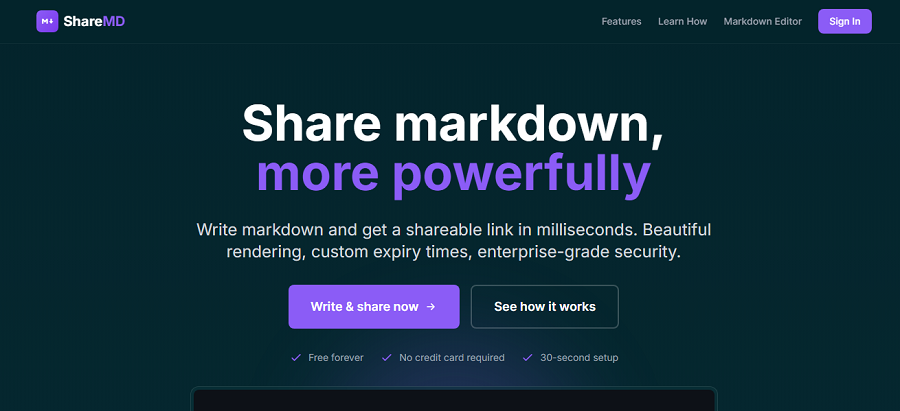
ShareMD is one of the best online editing and sharing tools for Markdown files. provides an online workflow for working with Markdown and sharing the resulting content.
Its current Markdown Preview page provides an editor and live preview. Also, it’s the best tool for creating a shareable version of the document with a password to increase the security of your document.
If you want a GDPR-compliant and fast Markdown-sharing tool, ShareMD is your best choice.
1. Open the ShareMD Preview
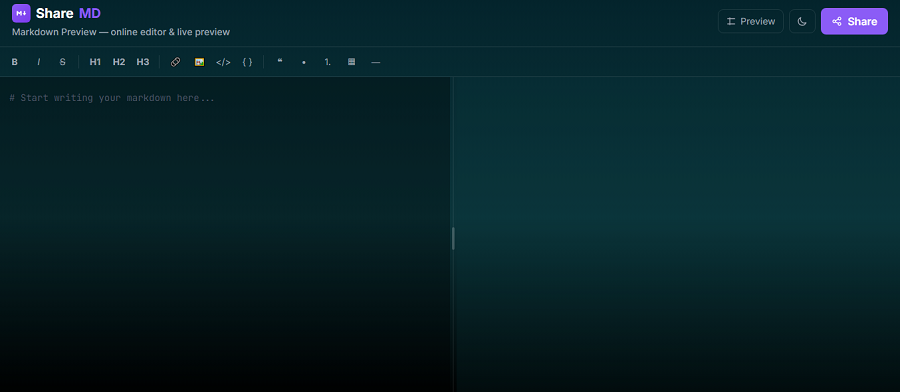
Go to ShareMD.dev and click “Write & share now”. You’ll be directed to the Markdown Preview page that provides an online environment for editing Markdown and viewing the rendered result.
You can also access the Markdown Preview page directly.
2. Add or Paste Your Markdown
You’ll see two columns on the Markdown Preview page. In the left column, you can add your Markdown content to edit or share.
If you already have an .md file, you can use its content. Also, if you are creating a document from scratch, you can write or paste your Markdown directly into the editor.
Above the left column, you can see the editing tools, including:
- Headings: H1, H2, and H3
- Bold
- Italic
- Link
- Image
These tools allow you to write and edit your Markdown content without needing any advanced word processing platforms.
As you work on your Markdown file, you can see the preview to understand how the Markdown is rendered.
This is useful for checking whether your headings, lists, links, code blocks, and other formatting appear as expected.
3. Preview the Rendered Markdown
Before sharing the document, you have to review the rendered Markdown preview.
This step is important because the reader will generally care about the finished presentation rather than the Markdown syntax behind it.
Remove any formatting issues and make sure the final version is flawless and readable.
4. Configure the Sharing Options
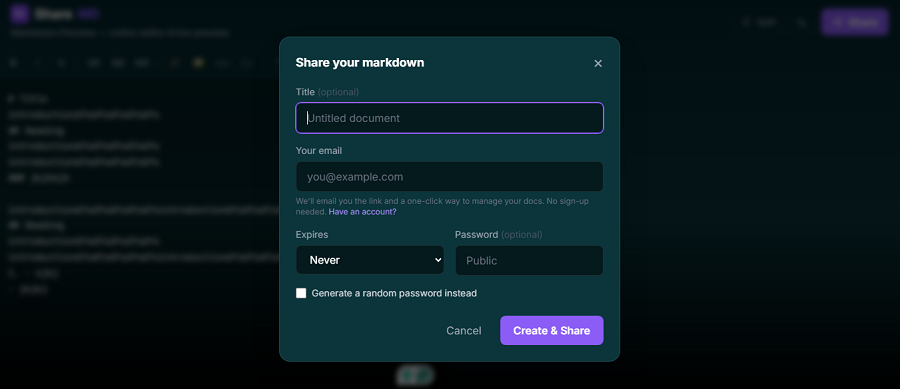
Click the “Share” button in the upper-right corner. Then, fill out the sharing form, including:
- Title
- Your email
- Expires: Never, 1 Day, 1 Week, or 1 Month
- Password (optional)
- Generate a random password instead
5. Create and Share the Page
Finally, click “Create & Share” to see the shareable document.
The tool will create a link such as: https://sharemd.dev/eSiwTD8M. You can copy the link and send it via email.
You can also use the recipient's email when filling out the form to send the file directly to them.
Immediately, they’ll receive a confirmation email containing the link to the document.
Final Thoughts
Markdown is a useful format of text that helps you store and share content with plain text. When working and sharing Markdown files, you don’t need complex word processing tools like Microsoft Word and Google Docs. This is especially important when it comes to AI token usage. When you paste your documents as Markdown, the AI model needs fewer tokens to process your prompt. Using tools like ShareMD helps you easily create, convert, and share Markdown files.
FAQs
How to share Markdown files with others?
You can share Markdown files using multiple methods. First, you can send the .md file directly via email or messaging apps. Second, you can upload it to a platform like GitHuser using an online Markdown sharing tool such as ShareMD to create a viewable link.
How do I export a Markdown file?
You can export Markdown files by saving the document as a .md file or converting it to formats such as HTML, PDF, or DOCX using a Markdown editor or converter.
How do I create a Markdown file?
Create a Markdown file using any text editor, add Markdown syntax, and save the file with the .md extension. You can also use dedicated Markdown editors with live preview features.
How do I publish a Markdown file?
You can publish a Markdown file by hosting it on platforms like GitHub Pages, a documentation website, or an online Markdown sharing service that converts it into a public web page.
What are the benefits of using Markdown in AI?
Markdown helps AI tools understand and structure content clearly. Its simple formatting, readability, and compatibility make it useful for writing prompts, documentation, notes, and AI-generated content.