How to Preview Markdown Online
By Hossein · · 11 min read
Did you know that you can have a webpage-like preview of a Markdown file?
You can easily preview Markdown using free online platforms. You just need to copy your Markdown and paste it into an online Markdown editor. It will immediately show you a preview in web page format.
Online Markdown editors will give you a simple dashboard to edit your Markdown file and simultaneously see a preview to make sure it looks good. Then, you can also share the previews with your team using a link.
Here, we’ll explain how to use an online Markdown editor to preview your Markdown file.
What Is Markdown?
First, let’s see what a Markdown file is and why you need Markdown.
Markdown is a lightweight markup language that uses simple symbols to format plain text. In fact, instead of relying on formatting buttons in a word processing platform, you can use a few characters to determine the style of your text.
For example, you can use # before a line to show it’s an H1 heading or use ## to make it an H2. This symbol tells tools how to read your text and how to display it.
As a result, without using a heavy application, you can read and write structured content that is readable even without processors.
The Markdown language was created by John Gruber in 2004 and soon gained popularity among developers.
Advantages of Markdown
Here are the main benefits of Markdown:
-
Easy to Learn: It uses simple symbols and characters, so it’s easy for beginners to learn and format content.
-
Readable as Plain Text: You can easily read the content even without a rendering tool.
-
Platform Independence: You can use it across different operating systems, editors, and platforms without relying on word processing tools like Office or Google Docs.
-
Lightweight Files: It uses plain text, so the result is small, portable, and easy to manage.
-
Developer-Friendly: Markdown is perfect for documentation, README files, technical guides, and code-related content.
-
Easy Conversion: You can easily convert it into HTML, PDF, and other formats using compatible tools.
-
Version Control Compatibility: It works well with Git and other version control systems. So, you can track changes and collaborate efficiently.
Markdown vs. HTML vs. Rich-Text Editors
You might wonder why you need to use Markdown while HTML can handle text very well.
HTML uses tags such as and to structure your page. It’s a bit more difficult to write an HTML file or read it without a rendering tool.
Markdown offers a shorter syntax for common formatting tasks. Markdown has both the simplicity of plain text and enough structure for the majority of writing tasks.
You can edit Markdown in a basic text editor, move it between compatible platforms, or save it as a .md file.
Rich-text editors, on the other hand, usually let you format text using buttons, menus, and visual controls.
The following table compares these text languages:
| Feature | Markdown | HTML | Rich-Text Editors |
|---|---|---|---|
| Syntax | Simple symbols | Tags | Visual formatting tools |
| Ease of Use | Easy to learn and write | Knowledge of HTML tags | Beginner-friendly |
| Readability | Readable as plain text | Harder to read without rendering | Readable in the editor |
| Formatting | Supports common text formatting | Supports extensive page formatting | Supports visual text formatting |
| Editing Tools | Text editors and Markdown editors | Code editors and text editors | Word processors and rich-text editors |
| File Format | Plain-text .md files | Usually .html files | Often .docx, .rtf, or platform-specific formats |
| Portability | Easy to move | Across web browsers and editors | Depends on the editor and file format |
| Best For | Documentation and notes | Web pages and structured web content | Reports, letters, and visually formatted documents |
Common Markdown Syntax and Live Preview Examples
The easiest way to learn Markdown is to write a short example and inspect the rendered output. The following Markdown syntax examples cover the formatting you'll use most often.
1. Headings
You can use one to six hash symbols to create headings. Remember to use a space between the hash and the first character of your heading.
Here are samples of Markdown to format headings:
# H1
## H2
### H3
#### H4
The first line becomes the main heading of your article. The second becomes a section heading, and the third becomes a subsection heading.
You need to use heading levels in a logical order. For example, if you’re writing a blog post, you can use a main title (#), several second-level sections (##), and third-level headings (###) within those sections.
2. Bold and italic text
Use double asterisks for bold text and single asterisks for italics.
The Markdown format os sample bold and italic text will be like:
This is **bold text**.
This is *italic text*.
This is ***bold and italic text***.
The rendered result will look like:
This is bold text.
This is italic text.
This is bold and italic text.
These formats help you emphasize important terms in your content without interrupting the flow of your writing.
3. Ordered and unordered lists
You can use hyphens, asterisks, or plus signs for unordered lists. It’s also possible to use numbers to show periods for ordered lists.
Here are examples of unordered and ordered lists in Markdown:
- item 1
- item 2
- item 3
The rendered result of this will be a bulleted list.
1. Step 1
2. Step 2
3. Step 3
This will also lead to a numbered list.
If you want to create nested lists, you have to indent the subitems consistently. Sometimes you might see list items unexpectedly appear as plain text. This is usually due to the spaces after the markers and the blank lines separating surrounding paragraphs.
4. Images
To include objects like images in the text, you have to add an exclamation mark before the opening bracket.

If the URL points to an accessible image resource, any compatible renderer can display the image.
Remember that external image URLs may fail if the host removes the file, blocks access, or changes the address.
5. Hyperlinks
To create a hyperlink, you have to put the link with square brackets around the anchor text and put parentheses around the URL. Here is an example of a hyperlink in Markdown:
[Visit ShareMD](https://sharemd.dev/)
The rendered result is Visit ShareMD
6. Inline code and fenced code blocks
Many times, you need to include a code block in your text. You can easily do that using single backticks for short commands or code references.
You can use three backticks to create a separate code block.
Here is an example of a code block in Markdown and its preview:
Run `npm install` to install dependencies.

```javascript
function greet(name) {
  return `Hello, ${name}!`;
}
```
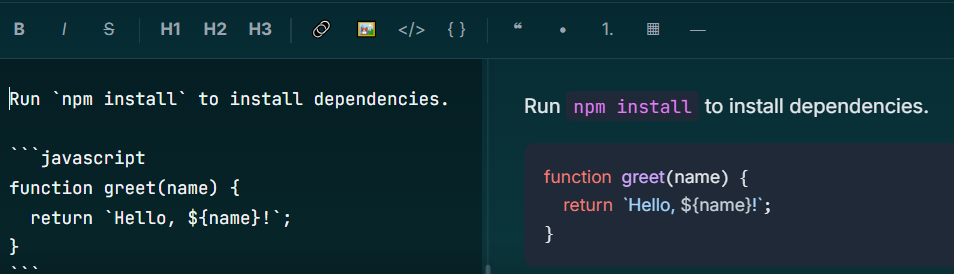
You can add a language identifier after the opening backticks. This will request syntax highlighting where supported.
This is especially useful for programming tutorials, API documentation, configuration examples, and README files.
7. Blockquotes
Place a greater-than symbol at the beginning of a line to create a blockquote.
Here are some examples:
> ShareMD is one of the best online Markdown editors.
> Using ShareMD, you can share your Markdown with your team.
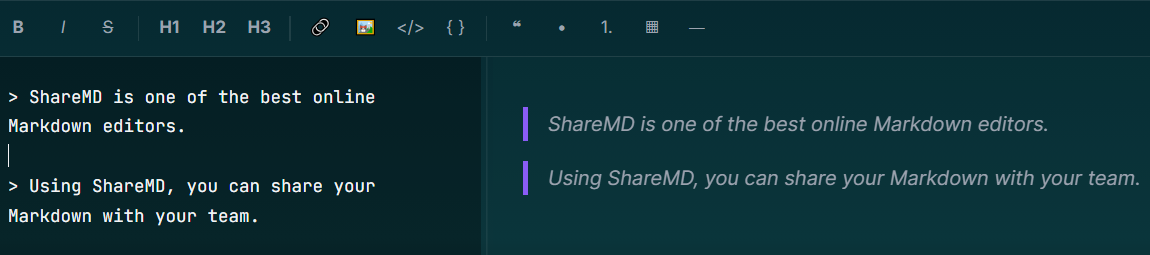
Blockquotes are useful for quotations, notes, and excerpts. Remember that their exact visual appearance depends on the styling of the preview tool you’re using.
8. Horizontal rules
If you use three or more hyphens, asterisks, or underscores to create a horizontal line that separates sections.
Here is an example:
Introduction

---

Next Section
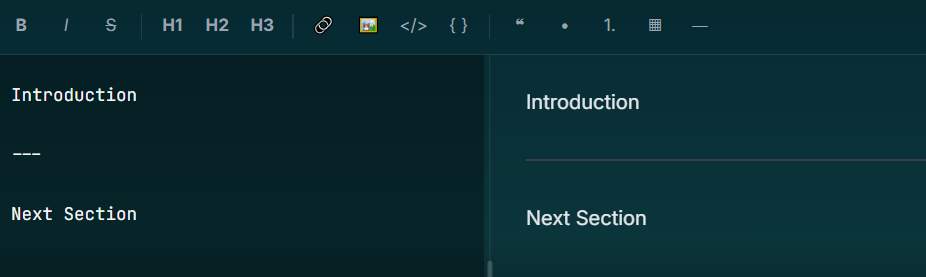
As you can see, the rendered result is a horizontal divider between the two sections.
9. Tables
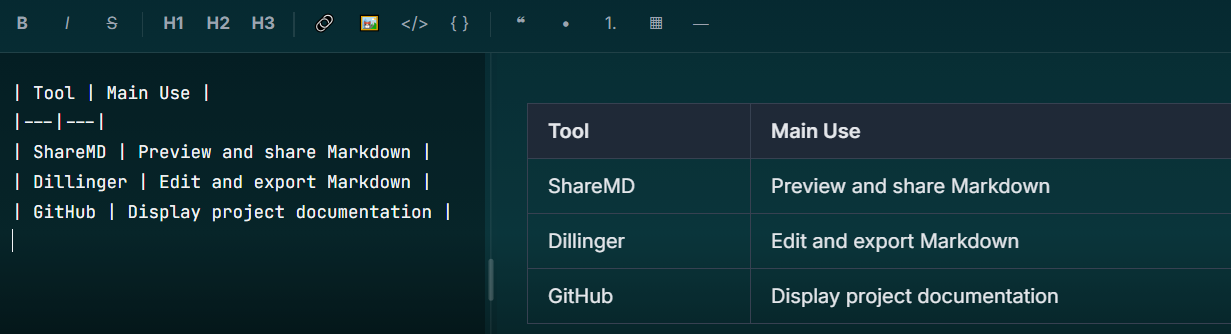
Tables help you organize comparisons, feature lists, and structured information. It’s good to know that tables are not part of the original minimal Markdown syntax. However, many modern Markdown renderers support tables.
Look at the following sample:
| Tool | Main Use |
|---|---|
| ShareMD | Preview and share Markdown |
| Dillinger | Edit and export Markdown |
| GitHub | Display project documentation |
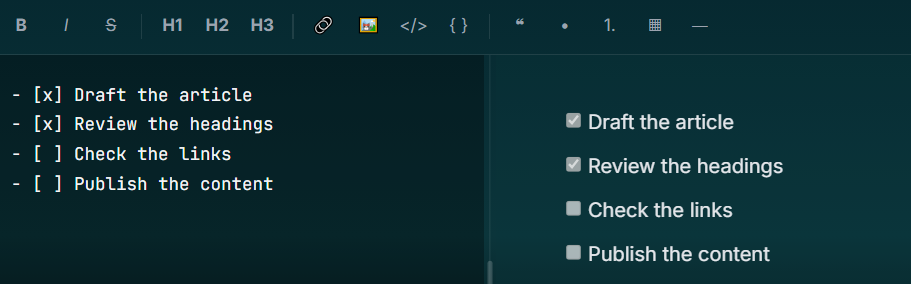
10. Task lists
Task lists are useful elements for project updates, checklists, and planning documents. They are supported by some extended Markdown editors like GitHub Flavored Markdown and ShareMD.
Here is a good example of using a task list for your text:
- [x] Draft the article
- [x] Review the headings
- [ ] Check the links
- [ ] Publish the content
Here is a summary of the Markdown syntax list:
| Element | Markdown syntax | Expected rendered result |
|---|---|---|
| Heading | ## Introduction |
Section heading |
| Bold | **Important** |
Important |
| Italic | *Note* |
Note |
| Bulleted list | - First item |
Bulleted item |
| Numbered list | 1. First step |
Numbered item |
| Link | [Home](https://sharemd.dev/) |
Clickable link |
| Inline code | npm install |
Monospaced text |
| Code block | Three backticks around code |
Separate code block |
| Blockquote | > Quoted text |
Quoted section |
| Horizontal rule | --- |
Horizontal divider |
| Table | Pipes and a separator row |
Structured table |
| Task list | - [ ] Task |
Checkbox, if supported |
Best Online Markdown Preview Tools
A browser-based Markdown viewer is useful when you need to:
- Check formatting: Confirm that headings, paragraphs, lists, and emphasis appear correctly in the rendered result.
- Review code: Inspect inline commands and fenced code blocks in your text.
- Test links and images: Check whether image URLs work.
- Prepare content: Review a document before adding it to your website or repository.
- Share your work: Use a service with built-in sharing rather than copying the content into another application.
1. ShareMD: Preview and share in one workflow
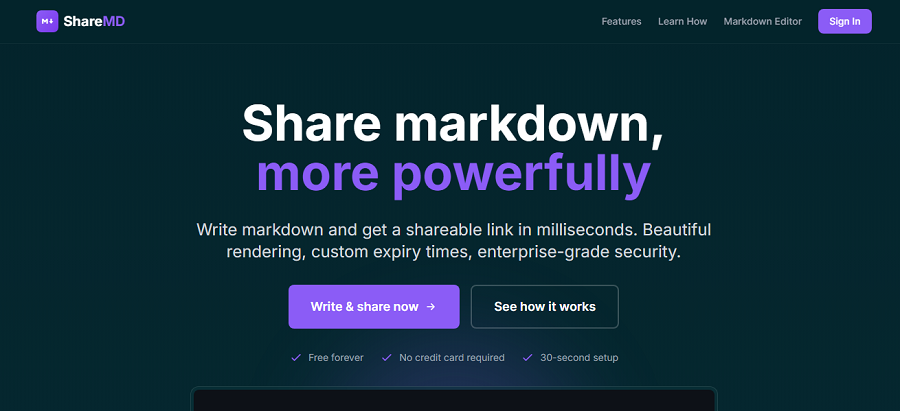
ShareMD Markdown Preview is a browser-based editor that provides a live preview and a simple sharing ability.
Its formatting toolbar includes common elements such as:
- Headings
- Bold texts
- Italic text
- Links
- Code
- Lists
- Images
- Tables
This editor also provides a sharing dialog with features like:
- Optional title
- Email address
- Expiry
- Optional password settings
The biggest advantage of ShareMD is that it supports writing, previewing, and sharing without requiring account registration to start the workflow.
When you edit your Markdown, you can see a preview of your text, and finally, you can export it as a webpage-like link to share with your team.
2. Dillinger: Editing, file handling, and export
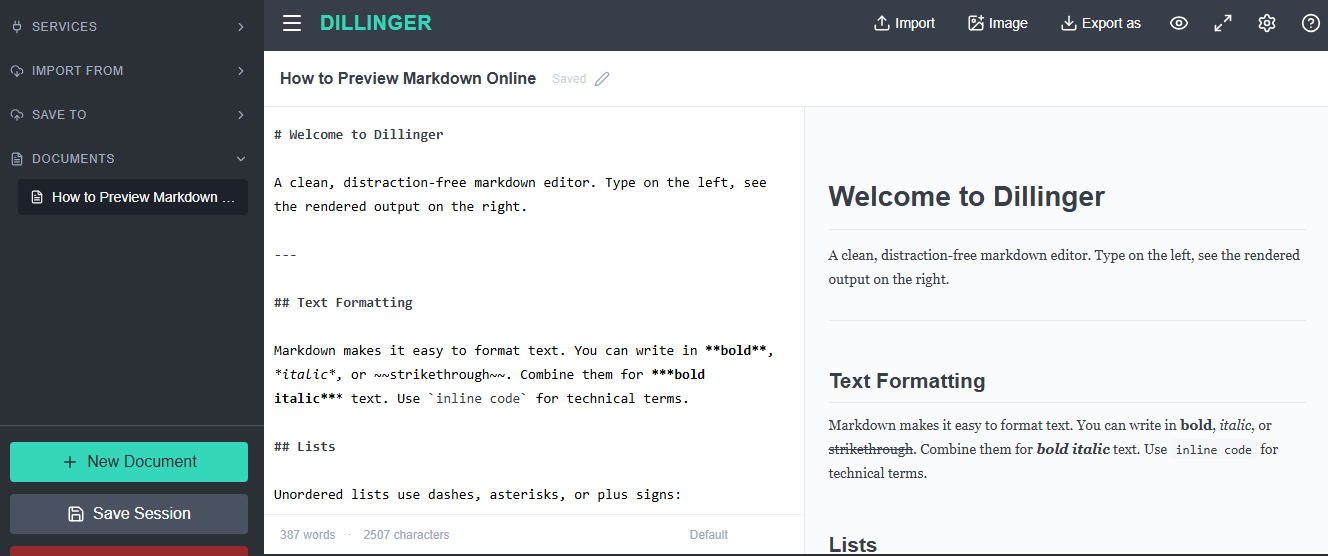
Dillinger is also a good option. It provides live preview, scroll synchronization, and file import and export features.
Using this tool, you can easily export your Markdown as HTML or PDF. Also, you can connect cloud services such as:
- GitHub
- Dropbox
- Google Drive
- OneDrive
- Bitbucket
Dillinger is great when you need to move documents between file storage and an editor or create a portable output for your team.
Of course, the cloud integration needs additional authorization, which is a bit time-consuming for a person who just wants to share something quickly.
3. StackEdit: Long-form writing and publishing
If you want a browser-based workspace with publishing integrations, you need to consider StackEdit.
It provides a Markdown editing and preview experience with scroll synchronization. StackEdit can publish to supported destinations such as GitHub, Google Drive, WordPress, Blogger, and other services.
If you’re working with long documents and publishing workflows that need to connect with an existing platform, this is your best chance.
However, you might need registration and authorization when using these features.
4. HackMD: Collaborative Markdown notes

If you’re running a team that creates and shares technical notes, consider this tool.
HackMD is designed for Markdown-based note-taking and collaboration. Its editing and reading views make it suitable for:
- Meeting notes
- Technical planning
- Shared documents
- Team knowledge
Sharing permissions and available features depend on the service's current configuration and plan.
If you only need to check a short document's formatting, a simpler online preview may be more convenient.
5. GitHub: Repository documentation
This is best for developers who maintain README files and project documentation.
GitHub is a famous platform for sharing software projects. It renders Markdown files in repository views and provides a preview when editing supported content through its web interface. Its official Markdown formatting guide explains its supported syntax.
GitHub is a natural choice when your Markdown belongs to a software project. Repository permissions and the commit workflow can make it less convenient for sharing a one-off document with someone who does not need access to your project.
How to Preview and Share Your Markdown Online
Here is a step-by-step guide to preview and share your Markdown file using ShareMD:
-
Open ShareMD: Visit the ShareMD website to access the online Markdown editor.
-
Write or Paste Your Markdown: Enter your Markdown text in the editor or paste content from an existing .md file.
-
Preview Your Content: Check the rendered output to see how your headings, lists, links, and other formatting will appear.
-
Make Any Changes: Edit your Markdown as needed and review the preview until you're satisfied with the result.
-
Share Your Markdown: Use ShareMD's sharing options to generate a link, if available, and send it to colleagues, clients, or friends so they can view your content online.
Conclusion
Markdown is a useful markup language that allows you to write and edit structured text without complex tools. You just need to learn simple Markdown syntax to format your text using plain text symbols. The thing is, you might make mistakes when writing and editing your Markdown file. Fortunately, there are useful Markdown editors online that allow you to see a preview of your Markdown in real time. Also, you can use these tools to share a readable preview of your Markdown as a webpage.
FAQs
Can I preview Markdown in the browser?
Yes, you can use an online Markdown editor like ShareMD to preview Markdown directly in your browser without installing any software.
How to preview Markdown text?
Paste your Markdown text into an online Markdown editor. The tool will render your headings, lists, links, and other formatting in a live preview.
How to share Markdown online?
Use an online Markdown sharing tool like ShareMD to generate a shareable link, then send it to others so they can view your content.
How to open a Markdown file online?
Open an online Markdown editor, upload your .md file if supported, or copy and paste its contents to view the formatted text in your browser.