New: Markdown Editor Online
By Hossein · · 9 min read
Whether you’re developing software or using AI models in your daily tasks, you need to learn how to work with Markdown files.
Thanks to online Markdown editors, you can easily write, edit, preview, share, or even convert Markdown files.
This blog post explains what a Markdown editor is and why you need to use them. We’ll also introduce multiple online Markdown editors.
What Is a Markdown Editor?
A Markdown editor is a lightweight tool for writing and editing text with Markdown. Using a Markdown editor, you can format text without heavy word processing platforms like Office and Google Docs.
Markdown editors use a simple markup language that gives style to your text with plain text symbols.
So, instead of relying on buttons and menus to format different parts of your text, you use simple characters to determine what each part is.
For example, you can type # and a space before a heading to determine it’s an H1. Also, if you want to bold a word in your text, you have to surround a word with asterisks.
Here is a summary of Markdown symbols:
| Element | Markdown syntax | Expected rendered result |
|---|---|---|
| Heading | ## Introduction |
Section heading |
| Bold | **Important** |
Important |
| Italic | *Note* |
Note |
| Bulleted list | - First item |
Bulleted item |
| Numbered list | 1. First step |
Numbered item |
| Link | [Home](https://sharemd.dev/) |
Clickable link |
| Inline code | npm install |
Monospaced text |
| Code block | Three backticks around code |
Separate code block |
| Blockquote | > Quoted text |
Quoted section |
| Horizontal rule | --- |
Horizontal divider |
| Table | Pipes and a separator row |
Structured table |
| Task list | - [ ] Task |
Checkbox, if supported |
Markdown is really popular among developers and also AI users. It’s widely used for blog drafts, software documentation, README files, project notes, knowledge bases, and exporting AI skills or prompts.
How Markdown Editors Work
Many tools can help you edit your Markdown file. However, only some of them provide a real-time preview of the result to help you understand possible errors.
In fact, Markdown has two forms:
- Raw Markdown: The source text you write.
- Preview: The rendered output readers see.
Here is an example:
# Project Notes

This is a **Markdown document**.

- Review the introduction
- Update the examples
- Check the links

Read the [Markdown Guide](https://www.markdownguide.org/).
The following picture shows the rendered result along with the raw Markdown:
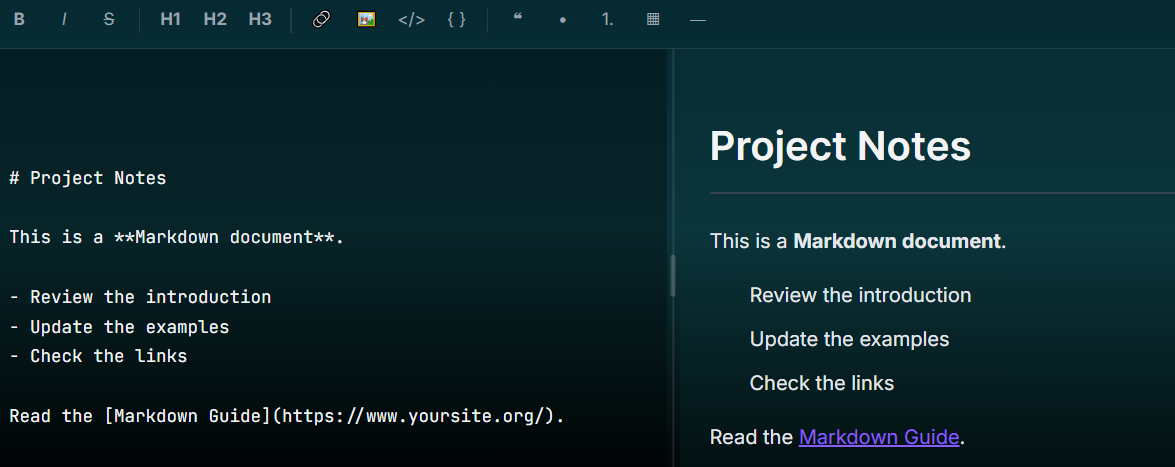
Actually, a Markdown renderer interprets the syntax and displays the content with styles and formats like a heading, bold text, a bulleted list, and a clickable link.
The underlying source is still plain text, but the preview will be structured text that is easy to read for everyone.
Markdown Editor vs. Text Editor vs. Rich-Text Editor
Text editors can also edit and create Markdown files. Let’s review their differences:
| Tool | How it works | Best suited for |
|---|---|---|
| Basic text editor | Plain text editing | Quick edits, .md files |
| Markdown editor | Markdown syntax, live preview | Articles, notes, documentation |
| Rich-text editor | Visual formatting tools | Formatting without markup |
In fact, a Markdown editor can use the flexibility of plain text with a structure that can be rendered into readable content.
Unlike a basic text editor, a Markdown tool helps you find formatting issues when you’re writing.
Benefits of Online Markdown Editors
An online Markdown tool can edit and show a real-time preview of the rendered version of your Markdown in a web browser.
In fact, without installing any application or registering any account, you can edit your Markdown file in a browser and see the result simultaneously.
Here are the benefits of using online Markdown editors:
1. No Installation Required
A browser-based editor allows you to begin writing as soon as you open the website. You do not need to download an application or configure a word processing tool to make a small change to a document.
This is useful when you need to edit a README or draft an article without struggling with heavy tools.
When your team members use a browser-based workflow, setup differences between their work will be minimal.
This way, everyone can use an online tool (even different ones) instead of installing desktop platforms.
2. Edit Markdown from Different Devices
An online Markdown editor makes it really simple when you move between computers or operating systems.
You can open the same website from a browser without installing a different application for each device.
Of course, browser access does not automatically mean your documents synchronize between devices. You need to make sure that it stores the doc, or at least share it using your email and open the file on the new device.
3. Live Preview While Writing
A Markdown editor with live preview helps you review the rendered document when you’re working. You can check:
- Headings
- Links
- Lists
- Code blocks
This is very useful because correcting errors after writing the file can be tedious, but if you correct them as you write, it takes less time and effort.
Previewing is especially important for longer articles and technical documents. In these files, formatting errors are difficult to detect by looking at the source alone.
4. Simple File Editing and Export
Working with online editors is really straightforward. There is no additional complexity or registration procedure.
You just need to open your existing file or start writing your Markdown file. You can also easily export your file and use it elsewhere.
Online Markdown editors are beginner-friendly, and everyone can use them without experience.
5. Collaboration and Sharing
Online Markdown editors can simplify content review. Also, the sharing features that they offer can boost the efficiency of your workflow.
Some tools provide real-time collaboration and allow multiple people to work on the same document.
On the other hand, some online editors can publish or share a document through a link. This makes it easier for your team members to read the content without handling the raw Markdown source.
Top Online Markdown Editors
Here are the best online Markdown editors in 2026:
1. ShareMD
If you’re looking for a simple Markdown preview and sharing workflow, ShareMD is your best chance.
It’s a Markdown-focused tool developed by VeronaLabs. The tool offers a straightforward Markdown writing, editing, reviewing, and sharing workflow.
You can see the rendered result of your Markdown file along with the raw text simultaneously.
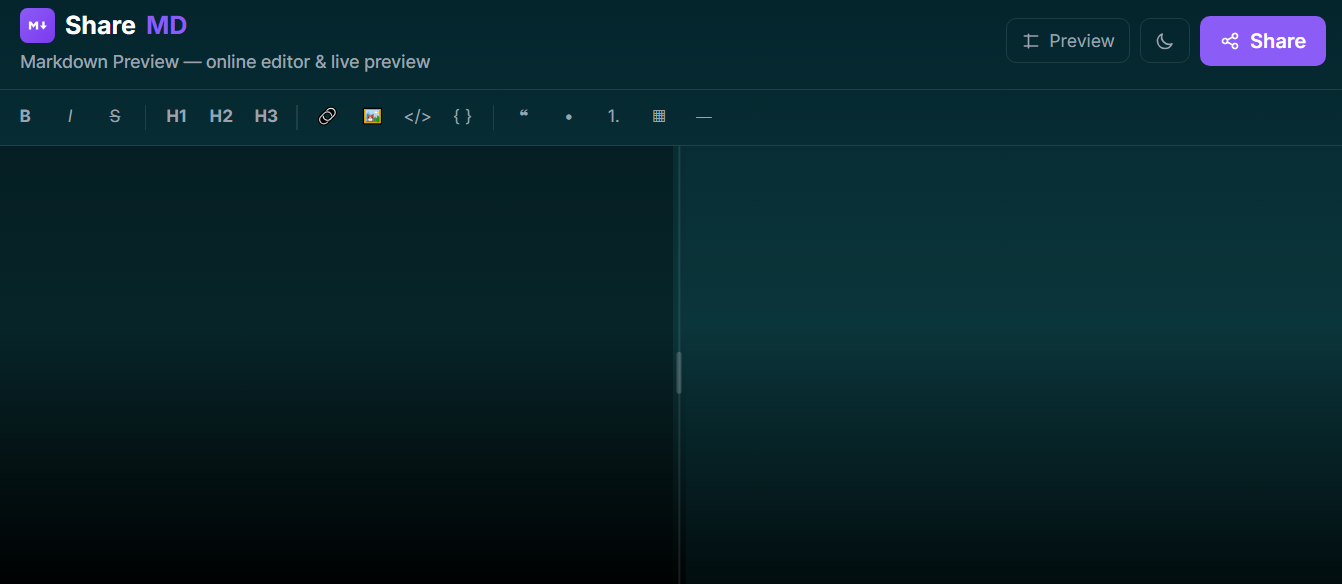
The good news is that you can easily convert the result into a readable webpage and share it with your team members. It’s also possible to define a password for the file to increase the security of your document.
More importantly, ShareMD is a GDPR-compliant tool with great technical performance, including:
- 99.9% Uptime
- <100ms Avg Response
- 266 API Calls/Day
2. StackEdit
This one provides a feature-rich browser-based Markdown writing environment.
StackEdit is a famous online Markdown editor focused on writing and previewing Markdown in a browser.
If you need more than a minimal preview page and want to investigate its document-management and integration options, this can be your choice.
StackEdit offers good features for importing, exporting, publishing, sharing, and cloud storage.
3. Dillinger
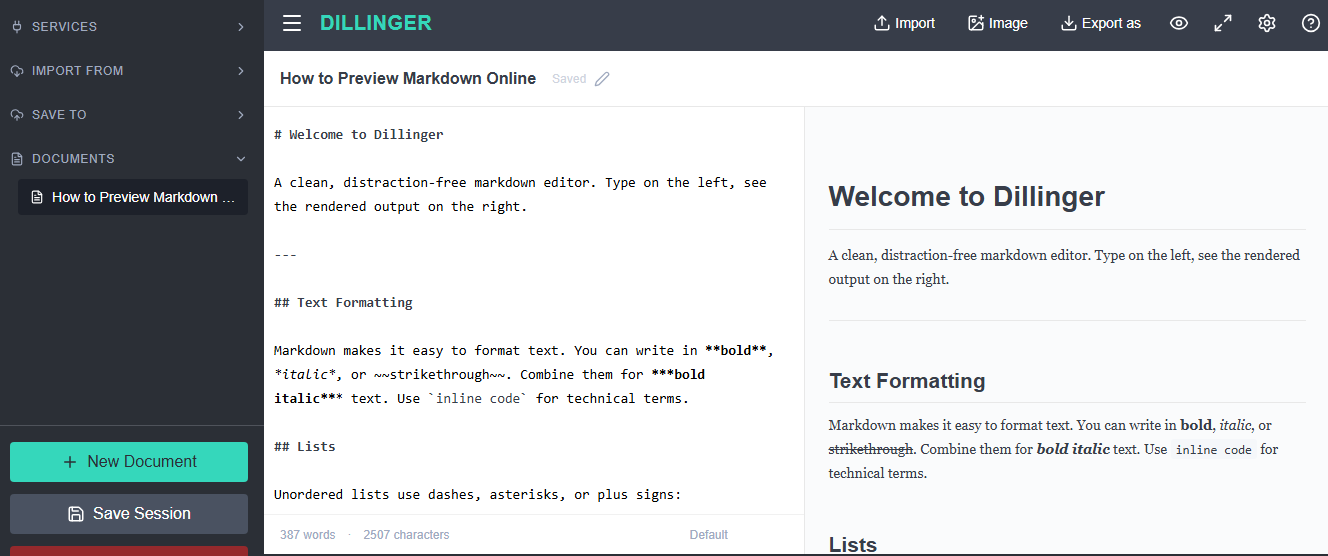
Users who want a browser-based Markdown editor with a preview-oriented workflow.
Dillinger is another established online Markdown editor. It is a useful candidate for people who want to write Markdown and review the rendered result without setting up a desktop application.
When comparing Dillinger with other tools, pay attention to its current file import and export options, supported storage integrations, and any sign-in requirements. These features can affect whether it fits a one-off editing task or a recurring content workflow.
Dillinger is worth evaluating alongside StackEdit if you want a dedicated Markdown environment. The best choice depends on whether you value simplicity, integrations, file portability, or other capabilities more highly.
4. Markdown Live Preview
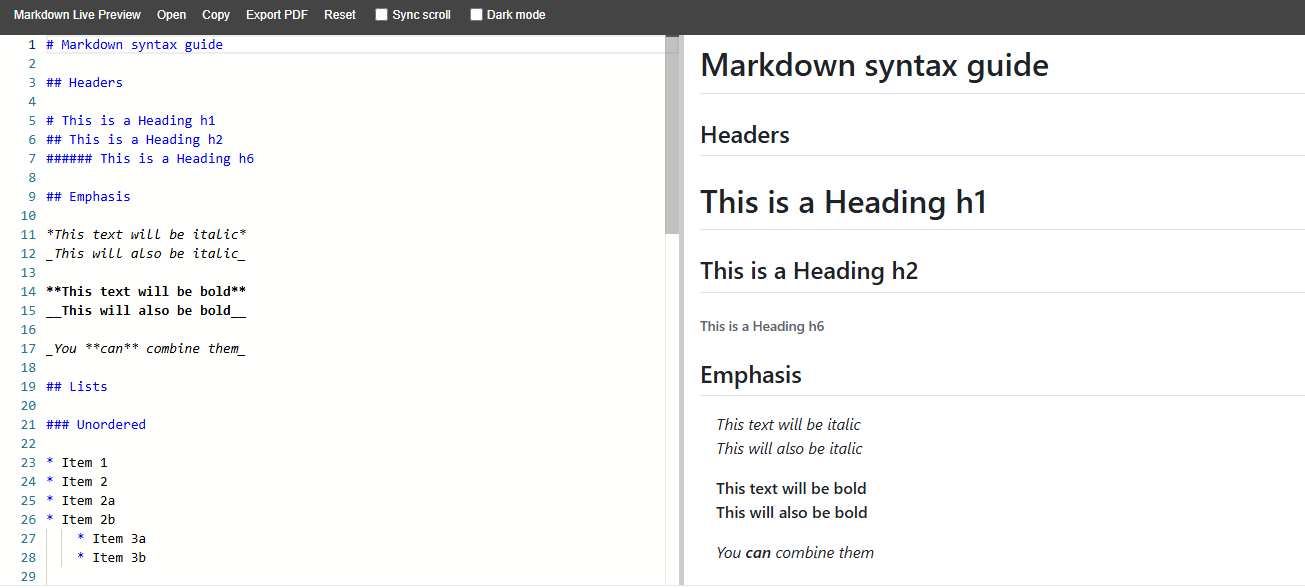
This one is best for quick Markdown formatting checks in a browser.
Markdown Live Preview is a preview-focused tool that is useful when you want to test Markdown syntax and immediately inspect how the output looks.
It has simplified Markdown syntax for beginners by providing a sample template when you open its editor.
You can paste your document or start creating one from scratch. It allows you to export the file as a PDF, which is great for articles.
How to Choose the Right Online Markdown Editor
Here is what to consider when choosing an online Markdown editor:
-
Ease of use: If you edit Markdown occasionally, you’d better look for a clear interface with a short learning curve. A simple editor is enough for you, so don’t go for a tool with registration or authorization processes.
-
Live preview: Choose an editor with a preview workflow. If you create articles, documentation, or complex lists, a rendered view is essential for you.
-
File compatibility: If you already have .md files, you have to verify that the tool can open or import them.
-
Sharing and collaboration: Choose a tool that can export or share the result with minimal difficulties.
-
Privacy and data handling: Try to understand where the tool will store your content and whether it is sent to a third-party service. If you’re working with sensitive data, you’d better go for compliant tools.
-
Cost and account requirements: Check the pricing plans of the tools. Search for free plans if you don’t need the Markdown tool for a big project.
Here is a quick comparison between these Markdown editing tools:
| Online Markdown editor | Best for | File import/export | Sharing or collaboration |
|---|---|---|---|
| ShareMD | Preview and sharing | Check options | Shareable links |
| StackEdit | Advanced writing | File and cloud support | Publishing and sync |
| Dillinger | Writing and formatting | Import and export | Integrations |
| Markdown Live Preview | Quick previews | Check availability | Check availability |
How to Edit Markdown Files Online
Now, let’s see how you can use ShareMD to create, edit, and share a Markdown file:
- Step 1: Open ShareMD, and choose and then click “Write & share now”.
- Step 2: Start writing or editing your existing Markdown document.
- Step 4: Preview your content as you write.
- Step 5: Click “Share”.
- Step 6: Enter details like password, email, expiry time, etc.
- Step 7: Check the final version and copy the link to share it with your team members.
Final Thoughts
Editing and sharing Markdown files can be so easy when you use an online Markdown tool like ShareMD. It allows you to write your Markdown file and check the rendered result at the same time. After writing your file, you can easily share it using a webpage link. It’s important to note that it’s compliant with privacy regulations, so you can be sure that your data won’t be transferred to third-party platforms. You can also enter a password and an expiry period for your document to increase the security of your file.
FAQs
Is there any online Markdown editor?
Yes. ShareMD, StackEdit, and Dillinger are popular online Markdown editors.
Can you open Markdown in a browser?
Yes. Online Markdown editors let you write, preview, and render Markdown directly in your browser.
How to create a new Markdown file?
Open an online Markdown editor, type your content, and save it as a .md file if needed.
Can I use Notepad++ for Markdown?
Yes. Notepad++ supports Markdown editing with syntax highlighting through compatible settings or plugins.
Does Microsoft have a Markdown editor?
Yes. Visual Studio Code supports Markdown editing, syntax highlighting, and preview features.
Does AI prefer Markdown or HTML?
Markdown is often preferred for AI prompts and structured text because it is readable and lightweight. HTML is useful when detailed formatting or web page structure is required.